1. Getting Started
Creating a Document
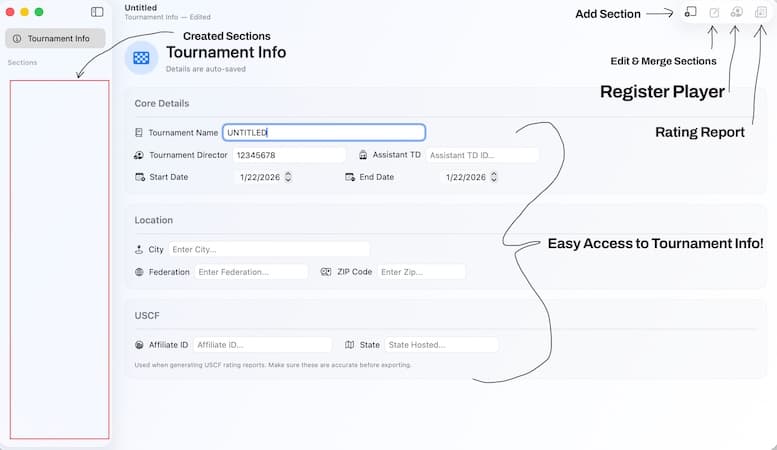
When you launch Chess Pairings, you'll be greeted with a clean start. Select "New Document" to begin a fresh tournament or open an existing file.
Built-in Peace of Mind
Forget Cmd+S. Unlike legacy Windows software, Chess Pairings features Native Auto-save. Every pairing and result is saved instantly to your Mac.
2. Configuring Sections
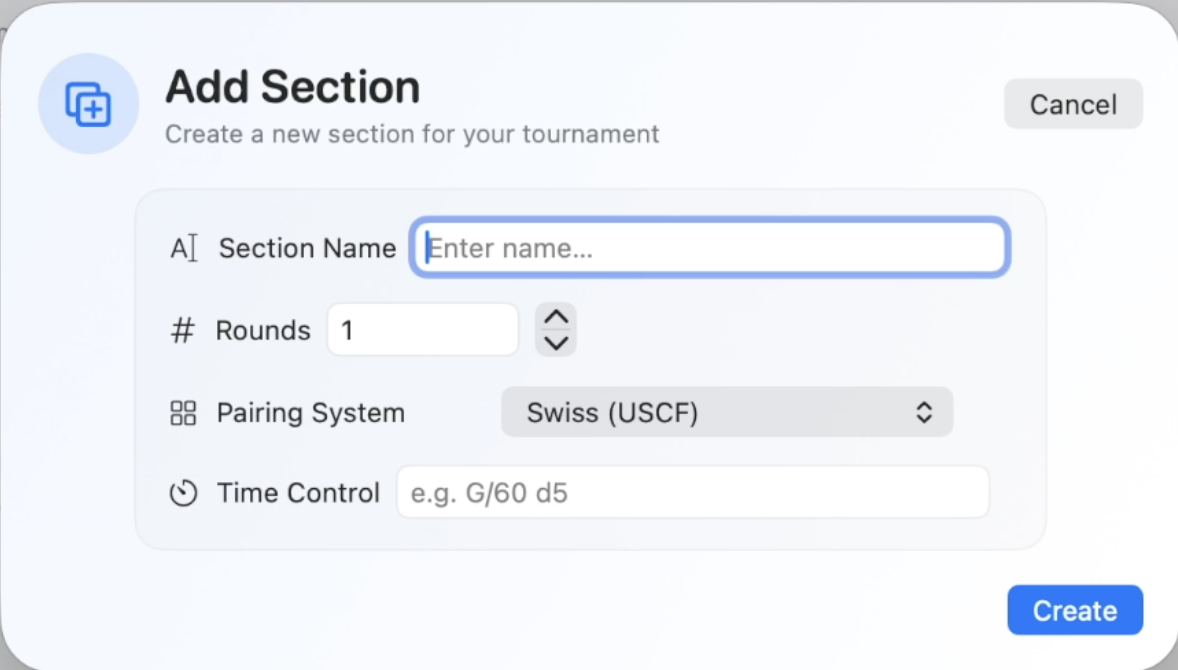
Click "Add Section" to define your tournament structure. You can customize the name, rounds, and select from specialized pairing systems like:
Editing & Merging
Need to combine fields? Select two or more sections in the "Edit/Merge" view. Caution: Deleting a section permanently removes all players and their history.
3. Registering Players
Smart DB Search
Don't waste time with manual entry. Use the DB Search tab to pull live data from USCF, FIDE, or CFC.
Restrictions & BYEs
Assign manual pairings or set point values for BYEs. Note: FIDE mode will warn you about deprecated full-point BYEs.
Advanced Accommodations
Use Reserved Boards for players requiring specific access (e.g., wheelchair users) or add Multiple Ratings for dual-rated events.
4. Pairings & Results
Generating the Round
Navigate to the Roster and click the Clipboard Icon. Here you can "Force Pair" players before the engine runs. Once you hit "Generate Pairings", the magic happens.
Managing Results
- Step 1 Pick a result (e.g., White Wins)
- Step 2 Click "Mark Round as Complete"
- Fix Right-click completed rows to "Update Result"
- Swap Use the Toolbar to swap player colors
The "Point of No Return"
If you need to Back up to a previous round, remember that all data after that point will be permanently erased. This operation cannot be undone—use it only when necessary!